
Common Questions
1. Why do I receive 2 codes?
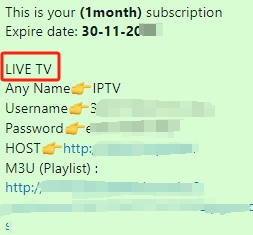
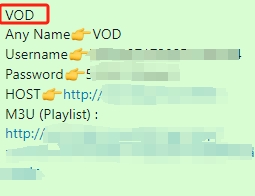
We have separated Live TV Channels and VOD (movies and series) into 2 codes (playlists). This is to save workload of our customer’s device, so that the device will load less item at the same time. Our customer can add both codes to their app, and switch playlists easily in the app (normally in the “Playlist” of the app)
2. Why it doesn’t work?
Please make sure all details are correctly typed into your app, especially for http (not https)! Please also check the APP set up tutorial below to make sure you put HOST or m3u in the right place.
3. It worked for a while and stopped working?
It is likely that the HOST has been blocked by internet provider. Please contact us to change HOST for you, or you can try with VPN or change DNS.
How to choose and set up IPTV Player APP
(4 common media players and instructions listed below)
1. Using IBO Player

IBO is a popular universal player. IBO PLAYER can solve the login problem of Apple, Samsung, LG and Xiaomi devices. IBO Player can be used perfectly on any device.
- IOS: IBO Player – Apple Store
- Android: IBO Player (https://iboiptv.com/device/login) Android APK 👇
①ibodesk.com/media.apk
②ibodesk.com/ibopro.apk
③ibodesk.com/iboprotv.apk
- Android: BOB PLAYER (https://www.bobplayer.com/login) Android APK 👇
①ibodesk.com/bob.apk

How to use IBO Player:
Step 1: Download the IBO Player app to your device.
Open the app, click “CHANGE PLAYLIST“, take note or screenshot of your “MAC address” and “Device key” at this point, they will be used in the later steps.

Step 2: Click on “Open IBO PLAYER Playlists” to enter the website, or use the alternate link https://iboiptv.com/device/login

Step 3: Go to the webpage and enter your “MAC address” and “Device key“.

Step 4: Then click “Add Playlist” in “Manage Playlists“. (If you have used it before, please delete the previous playlists first)

Step 5: Enter any name in Playlist Name, then copy the M3U address sent to you, and click “Save”. After this, restart the IBO PLAYER, click the “LIVE TV” icon to enjoy the premium programs! 🥰

2. Using SET IPTV

SET IPTV can solve the login problem of Samsung、LG and Xiaomi devices.It is a very stable player.
How to use SET IPTV:
Step 1: Download SET IPTV to your device, after downloading, note down your device “MAC address“.
Step 2: Go to https://setsysteme.com/set.app
Enter your “MAC address” and the “Playlist name“. Then enter your “M3U“, and finally click “SUBMIT“

Step 3: When finished, restart SET IPTV and you can enjoy the premium programs! 🥰
3. Using Smart IPTV

Smart IPTV can solve the login problem of Samsung、LG and Xiaomi devices.
How to use Smart IPTV:
Step 1: Download Smart IPTV to your device, after download, note down your device “MAC address“.
Step 2: Go to http://siptv.eu/mylist/
Enter your “MAC address” and the “M3U“ link we sent, then click “Send“. (If you have used it before, please delete the previous playlists first)

Step 3: When finished, restart Smart IPTV and you can enjoy the premium programs! 🥰
4. Using IPTV SMARTERS PRO/Lite


IPTV SMARTERS PRO is a free APP that can be used normally on most devices.
Reminder: Samsung、LG and Xiaomi users cannot use this! ! ! (Recommended to use on Smart IPTV, IBO PLAYER)
How to use IPTV SMARTERS:
Download IPTV SMARTERS PRO from the official website. Download link: https://www.iptvsmarters.com/#downloads
Step 1: Open the app once downloaded and click on “Add user” then click on “Login with Playlist“.

Step 2: In this step, in the first box, select any name you want for example “IPTV Playlist”.
Select “M3U URL” and enter the M3U (Playlist) we sent to you.


Step 3: After waiting a few seconds, tap the “LIVE TV” icon to enjoy the premium programs! 🥰